
For teachers, creators and teams
Turn long recordings into clips and courses.
Paste a class, a stream or a webinar. Crux cuts captioned vertical clips that hold attention and, when you want one, builds a course with lessons and quizzes.
How it works
Step 1 of 4. Paste a link or drop a file.
One box. Crux checks the title and length before it starts.
Turn a recorded class into clips and a course
Step 2 of 4. Watch it work.
Real progress from real steps: fetching, transcribing, finding moments, scoring.
Making your clips
100%
- Fetch video0:12
- Prepare0:31
- Transcribe1:04
- Find moments0:48
- Score and rank0:22
- Build previews0:35
You can leave this page. We'll tell you when the clips are ready.
Step 3 of 4. Pick your clips.
Every clip has a score and the reasons behind it, quoted from your own words.
- 0:47westoppedpitching92Why we stopped pitching and started publishing
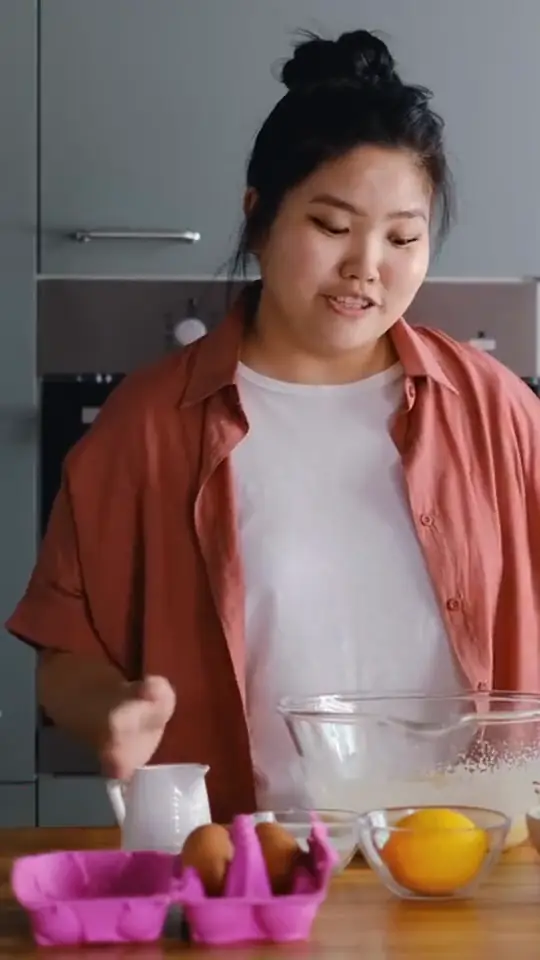
- 0:58don'tovermixit88The trick to a lighter batter
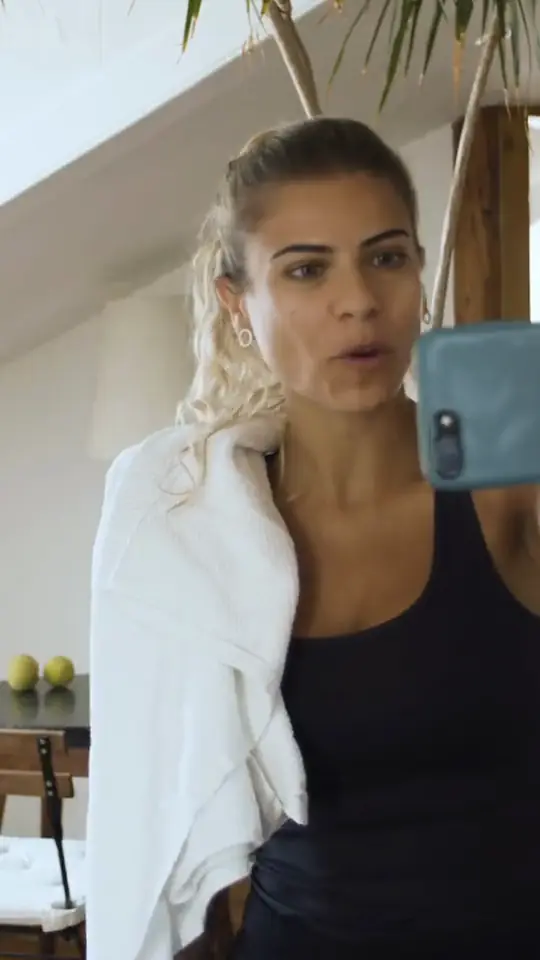
- 0:39cooldownfirst85What I do right after a workout
- 1:02oneversusthree79The clutch that won the round
- 0:44plantheweek74How I plan my whole week
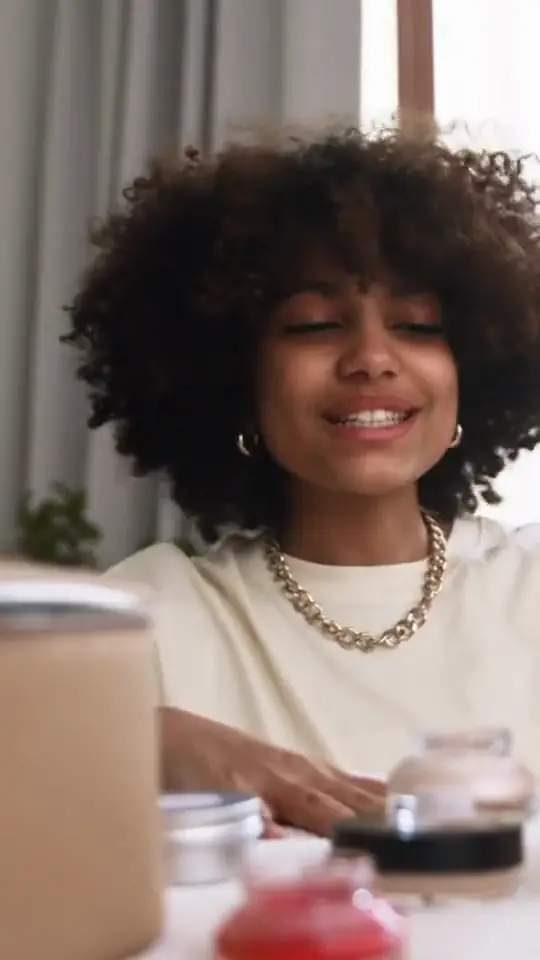
- 0:51worththehype68Honest first try of a new lipstick
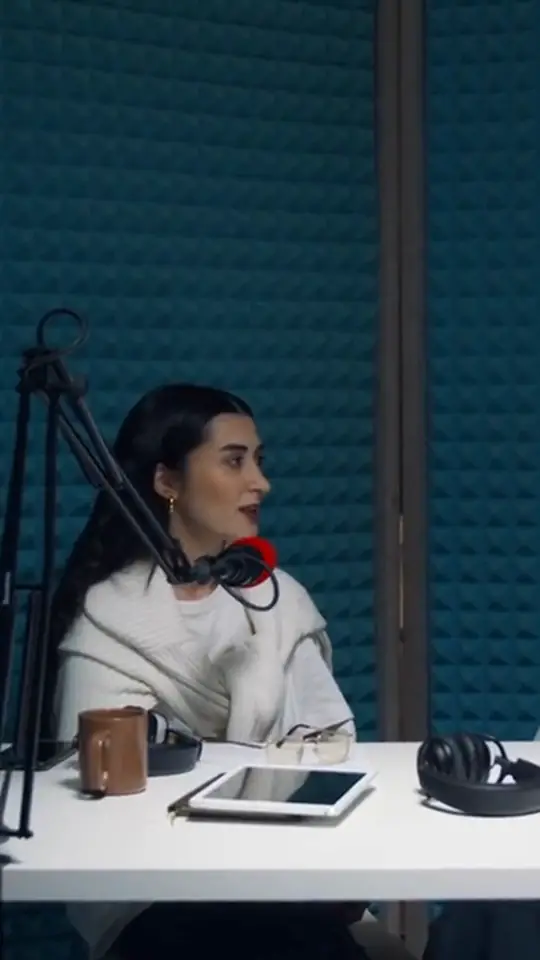
Strong hook, clean ending
Score 92 of 99
- Hook24/25
- Flow22/25
- Value24/25
- Trend22/25
We stopped pitching. We published every week, and the work found us.
Step 4 of 4. Polish and export.
Edit the words to edit the video. Captions, layout and brand in one place. Export HD or send to your editor.
Caption styles
- MakeitcountBold pop
- MakeitcountKaraoke
- MakeitcountClean
- MakeitcountBoxed
Every clip comes with its reasons.
A score alone tells you nothing. Each clip shows how it did on four things and quotes the lines that earned it.
Hook23/25
I raised my rates the week I felt least ready, and nobody left.
Flow21/25
Here's what happened next, and it surprised me more than anyone.
Value24/25
Send the new price with the next proposal, not in a separate email.
Trend21/25
Everyone is talking about pricing right now, and most of it is fear.
Don't like the picks? Ask for different ones.
Captions that look like yours.
Pick a style or build your own, then save it with your logo, colors and fonts so every clip comes out on brand.
Bold pop
Karaoke fill
Clean lower third
Boxed
Emoji accent
Highlight keyword
Typewriter
Brand
Courses from your classes
Your recorded class, turned into a course.
Upload a class or import it from Zoom. Crux splits it into lessons, writes a summary and a short quiz for each, and packages the course for your LMS.
- 1
Split into lessons
Crux finds where the topic changes and cuts the class into lessons, each one its own video.
- 2
Summaries and quizzes
Every lesson gets a summary, key points and up to 3 quiz questions, written from what was said.
- 3
Export to your LMS
Download a SCORM 1.2 package, the lesson videos or the outline, and use them wherever you teach.
Exposure triangle
Recorded class · 45 min
Transcript
02:41Maya Every exposure comes down to three settings.
02:55Leo Which one should I change first?
Lessons found
- 1Welcome00:00
- 2The triangle04:12
- 3Aperture14:40
- 4Shutter speed27:05
- 5Q&A39:10
Photography basics · Class 1
5 lessons · 27 min
The basics
- 1Welcome2:10
- 2The exposure triangle6:45
- 3Aperture and depth of field5:30
Taking the shot
- 4Shutter speed and motion8:05
- 5Questions from the class4:12
The exposure triangle
What aperture, shutter and ISO each change, and how to trade one against another.
Key points
- Aperture sets how much of the shot is in focus.
- Shutter speed decides how much motion blurs.
- ISO brightens the shot and adds grain.
Question 1 of 3
Which setting controls motion blur?
- Aperture
- Shutter
- ISO
Photography basics · Class 1
5 lessons · 27 min
SCORM package
Upload to any LMS that takes SCORM 1.2
Lesson videos
5 MP4s, one per lesson
Outline
Every module and lesson, in order
- lessons
- 5
- quiz questions
- 15
- minutes of video
- 27
Inside the package
photography-basics.zip
412 MB- 1WelcomeMP4Captions
- 2The exposure triangleMP4Captions
- 3Aperture and depth of fieldMP4Captions
- 4Shutter speed and motionMP4Captions
- 5Questions from the classMP4Captions
- 3 clips
- 2 clips
- 4 clips
- 1 clip
- Processing
- Up next
Clip a livestream while it's still live.
Paste a stream or channel link, or send from your streaming software. Every few minutes Crux cuts the newest stretch into clips, so the best moments are ready before the stream ends.
Also in the box.
Remove filler words and long pauses
Cuts the ums, false starts and dead air, and keeps the captions in sync.
Enhance speech
Cleans room echo and background noise off the voice track.
Dub into other languages in your voice
Translates what you said and speaks it in a voice that sounds like yours.
Add B-roll
Places matching footage or generated images over the moments that need them.
Reframe for 9:16, 1:1 and 16:9
Follows whoever is talking, so the speaker stays in frame.
Export to Premiere and DaVinci with captions
Hands over the cut and the caption track so an editor can finish it.
Pricing
Start free, then pick your credits.
Processing a video costs 1 credit per started minute of the part you pick. Paid plans add 4K export, your brand kit and API access. You see the cost before you start, and failed runs give credits back.
Free
$0/month
For trying Crux on your own classes.
Start freeWhat's included
- 60 credits a month
- Up to 60 minutes of video processed a month
- Ranked clips, captions and transcript editing
- Courses with quizzes, exported as SCORM, MP4s or an outline
- HD (1080p) export
- Clips from live streams
- Credits back when a run fails
Pro
Recommended$19/month
Slide to pick how many credits you need.
Start freeWhat's included
- 200 credits a month
- Up to 200 minutes of video processed a month
Everything in Free, plus
- 4K export
- Your brand kit: logo, fonts and intro or outro on every clip
- API and MCP access
Pro Plus
$45/month
For a full teaching schedule.
Start freeWhat's included
- 500 credits a month
- Up to 500 minutes of video processed a month
Everything in Free, plus
- 4K export
- Your brand kit: logo, fonts and intro or outro on every clip
- API and MCP access
Prices in USD, tax included. Paid plans open soon. Until then, every workspace tops up to the Free plan's 60 credits on the 1st of each month (UTC), and Free credits don't carry over.
| Action | Credits |
|---|---|
| Processing the part of a video you pick | 1 credit per started minute |
| HD export | 1 credit per started minute |
| 4K exportPro and Pro Plus | 4 credits per started minute |
| Speech enhancement | 6 credits per started minute |
| Dubbing | 25 credits per started minute |
| Generated image B-roll | 3 credits per clip |
Questions
What videos can I use?
Links from YouTube, Vimeo, TikTok, X, Twitch and Google Drive, a direct video link, or a file you upload. Zoom recordings come in through the integrations page.
How long can a video be?
Videos can be up to 2 hours long. Pick just the part you want and only that part is processed.
How do credits work?
Processing a video costs 1 credit per started minute of the part you pick. Exports, dubbing and B-roll cost credits at the rates in the pricing table. Every cost shows before you start, and if a run fails, its credits go back to your balance.
What happens if processing fails?
The step that failed is marked with the reason, you can retry from that step, and the credits it used go back to your balance.
Can I edit the clips?
Yes. Delete words from the transcript to cut the video, trim the ends, change the layout and captions, and undo anything. The preview matches the export.
Can I use my own fonts and logo?
Yes, on Pro and Pro Plus. Add your logo and colors, pick your fonts and caption style, and save them as a brand kit. Every new clip starts from it.
Can I use the course in my LMS?
Yes. Export it as a SCORM 1.2 package, with the lesson videos, captions and quizzes inside, and upload it to any LMS that takes SCORM. You can also download each lesson as an MP4, and the outline on its own.
Can I export to my editor?
Yes. Export an XML timeline that opens in Premiere and DaVinci Resolve, captions as SRT, or everything at once as a ZIP.
Is there an API?
Yes, on Pro and Pro Plus. A REST API creates projects, lists clips and starts exports, webhooks tell you when work is done, and an MCP server lets assistants do the same. Keys live in Settings under Developer.
Turn your next class into clips.
No card needed. Try it on your own video.